

How to Generate an SSH Key on Your Computer
Generate an SSH key on Windows, macOS or Linux, add it to your server and connect without a password.
- Estimated Time
- 6 minutes
- Difficulty
- Easy
- Steps
- 5 steps
- Last Updated
On This Page
SSH keys let you connect to servers securely without typing a password. This guide shows how to generate an SSH key on Windows, macOS and Linux, add it to a server and connect.
What Is an SSH Key?
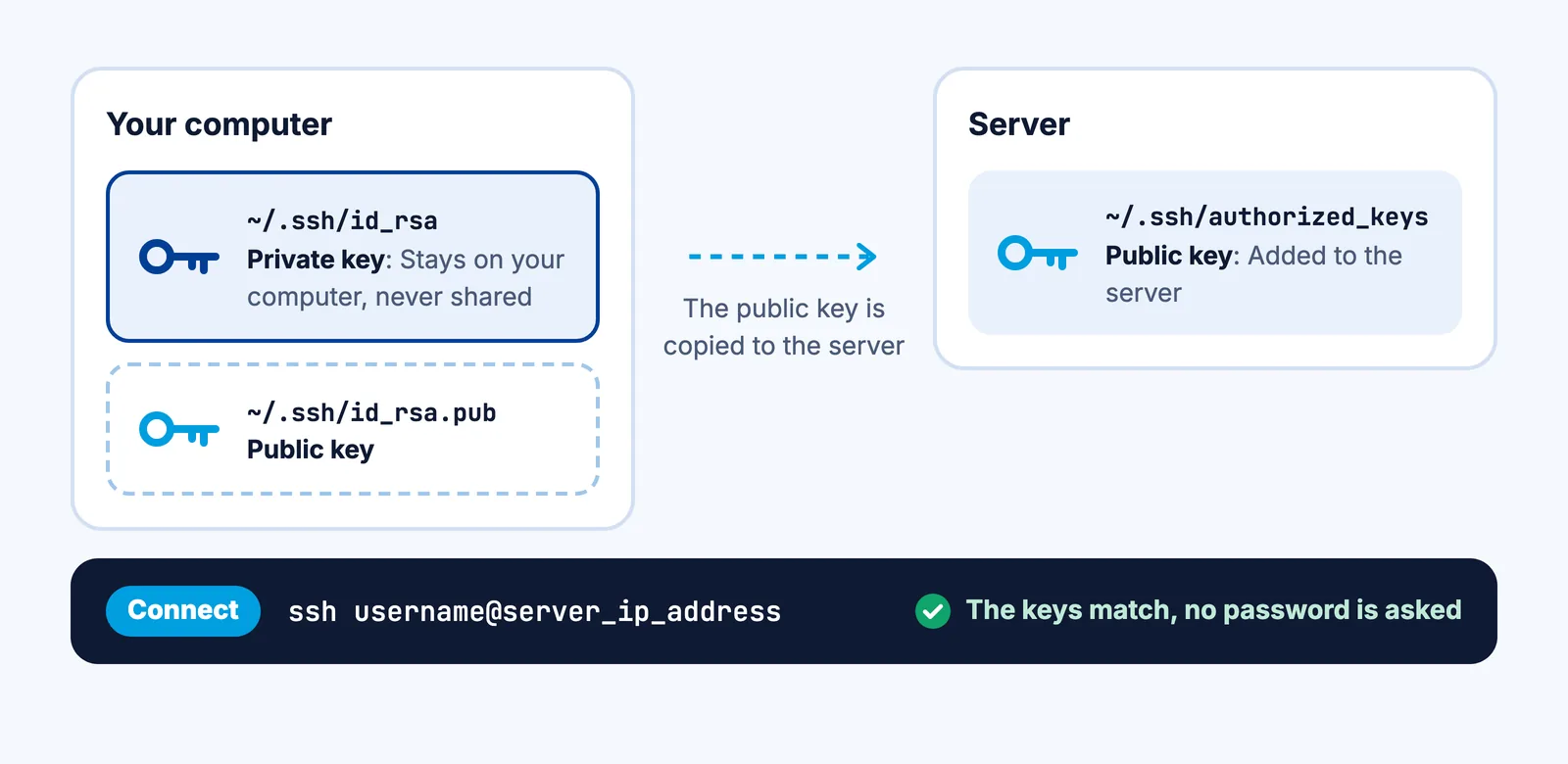
SSH keys use asymmetric encryption and come in two parts:
- Private key: Stays on your computer. Never share it.
- Public key: Uploaded to the server you want to connect to.
Generating the Key
0 of 5 steps done
Step 1: Open the Terminal
On macOS and Linux, open the Terminal app. On Windows, you can use "PowerShell" or "Git Bash".
Step 2: Run the Key Generation Command
Run the following command:
bashssh-keygen -t rsa -b 4096 -C "email@example.com"-t rsa: Creates an RSA key.-b 4096: Sets the key length to 4096 bits.-C "email@example.com": Adds a comment to the key, usually your email address.
Step 3: Choose Where to Save the Key
The command asks where to save the key. The default is
~/.ssh/id_rsa; press Enter to accept it. If you already have a key with the same name and don't want to overwrite it, choose a different name.Step 4: Set a Passphrase (Optional)
You can protect the key with a passphrase. To create a key without one, leave it blank and press Enter.
Step 5: Check the Generated Files
Two files are created:
id_rsa: Private key. Do not share it.id_rsa.pub: Public key. This is what you add to servers.
To list them:
bashls ~/.ssh/On Windows, the files are in
C:\Users\YourUsername\.ssh\.
Adding the Key to a Server
You can add your public key to a server with one command:
cat ~/.ssh/id_rsa.pub | ssh username@server_ip "mkdir -p ~/.ssh && cat >> ~/.ssh/authorized_keys"Or copy the public key manually:
cat ~/.ssh/id_rsa.pubCopy the output, log in to your server and paste it into the ~/.ssh/authorized_keys file.
Connecting with SSH
Once the key is added, you can connect without a password prompt:
ssh username@server_ipIf your private key has a different name:
ssh -i ~/.ssh/your_private_key username@server_ipCloud VPS
Flexible virtual servers located in Türkiye
Starting Price
$4.99/mo
Frequently Asked Questions
Which key do I upload to the server?
Only the public key (the .pub file). The private key stays on your computer and must never be shared.
Do I need a passphrase?
No, it is optional. A passphrase adds an extra layer of protection to your private key.
Where are the key files on Windows?
In the C:\Users\YourUsername\.ssh\ folder.